
First of all, thank you for using VoroClust. The following page details how to use VoroClust. Right now we are not releasing VoroClust to the public, it is only for government use only. We do intend to release it publicly at some point.
Getting VoroClust
You will need to get a copy of VoroClust. You will need permission to do this. You can clone the Git repo like so:
with ssh:
$ git clone git@cee-gitlab.sandia.gov:vorocrust/voroclust.git
Or with https:
$ git clone https://cee-gitlab.sandia.gov/vorocrust/voroclust.git
Additionally, you may not need to do a git clone if you already have our software in a zip format.
Once you have the VoroClust software, the folder structure will be as follows:
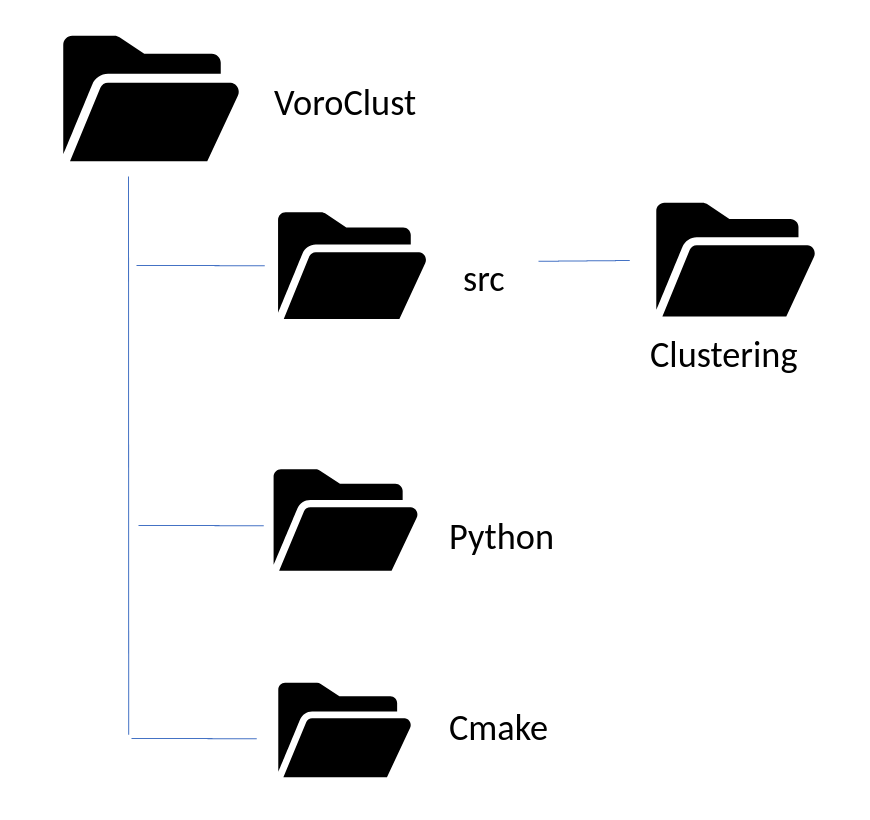
There are some other folders in the VoroClust software as you will notice if you poke around, however these are the major ones.
Requirements
To use VoroClust there are some packages that we expect you will have or can download.
- At least Python 3.10
Using VoroClust
There are 2 ways that users can implement the VoroClust software. Users can build the C++ code and produce an executable that they can then run with a config file; or users can install VoroClust as a Python package that they can then import into their Python scripts.
Method 1 – Using with Python
Installation Instructions
The first thing to do is to move into the voroclust/python directory and execute the following command:
$ python -m pip install .
Also note that depending on your set up / environment, you may need to use the python3 command, or python3.11, etc. Further troubleshooting information can be found in the repository README.
Usage Instructions
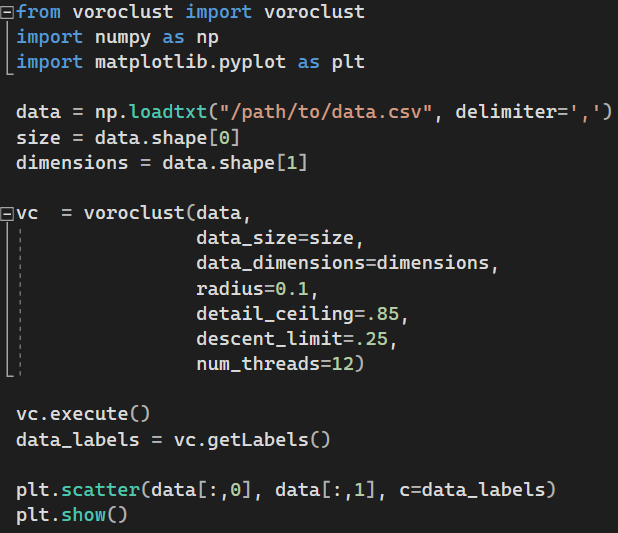
Once the package is installed, voroclust can be imported and used in any python script.
Method 2 – Using as Executable
Build Step
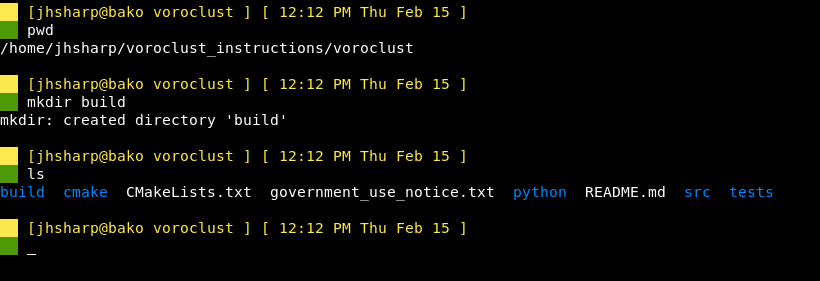
Create a build directory at the root level of the VoroClust project (voroclust/build).
Cmake Step
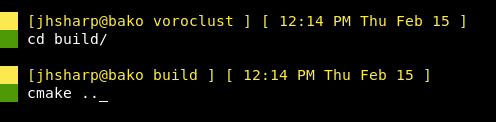
Move into the voroclust/build directory and run the following cmake command.
$ cmake ..
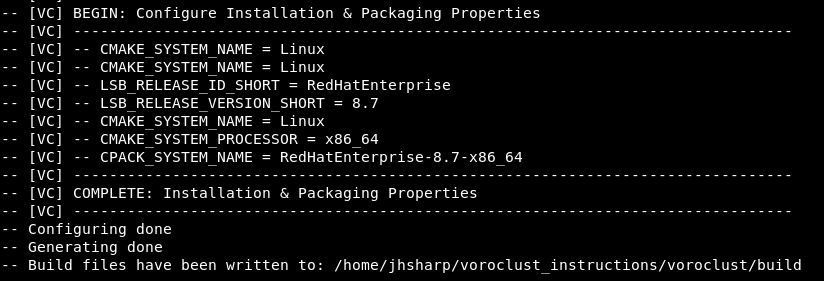
After running this command, the last few lines of output should look like similar to this:
And the contents of the build directory should look like below:

Make Step
Next, run the make command.
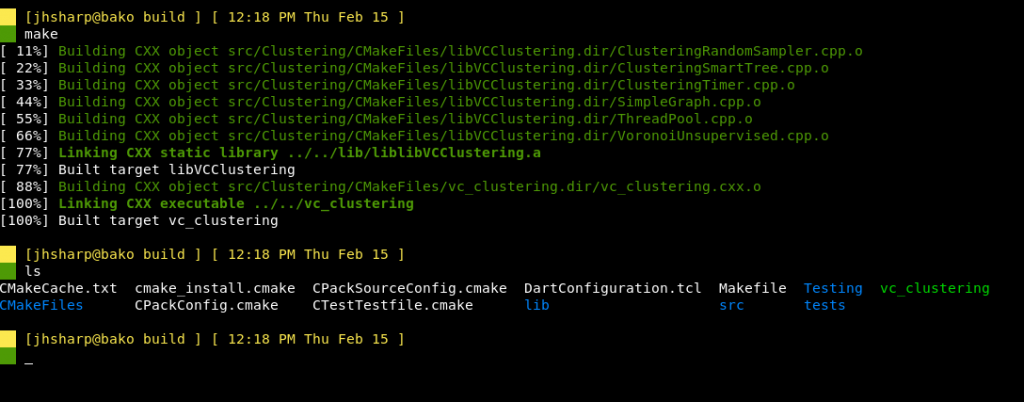
Notice that you will see the voroclust executable once make successfully completes.
Method 2 – Windows Specific Instructions
Building VoroClust on a Windows machine is similar to what a Linux or Mac user would do, however there are some differences.
The build step is the same, go into the voroclust folder and create a build directory.

Then move into voroclust/build and run:
$ cmake ../
The output will look like this:
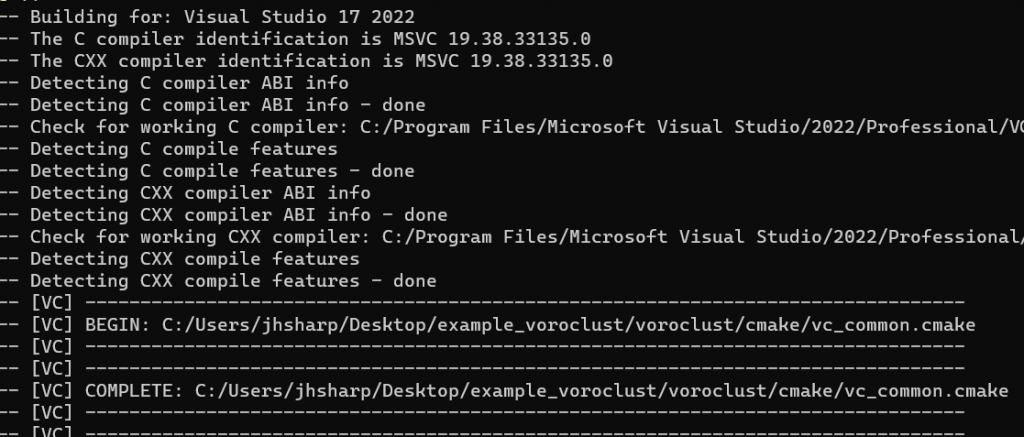
This is where the Windows instructions start to diverge from the Unix version. This is because the cmake command in Windows will create a VoroClust.sln (see image below) file that must be used with Visual Studio.
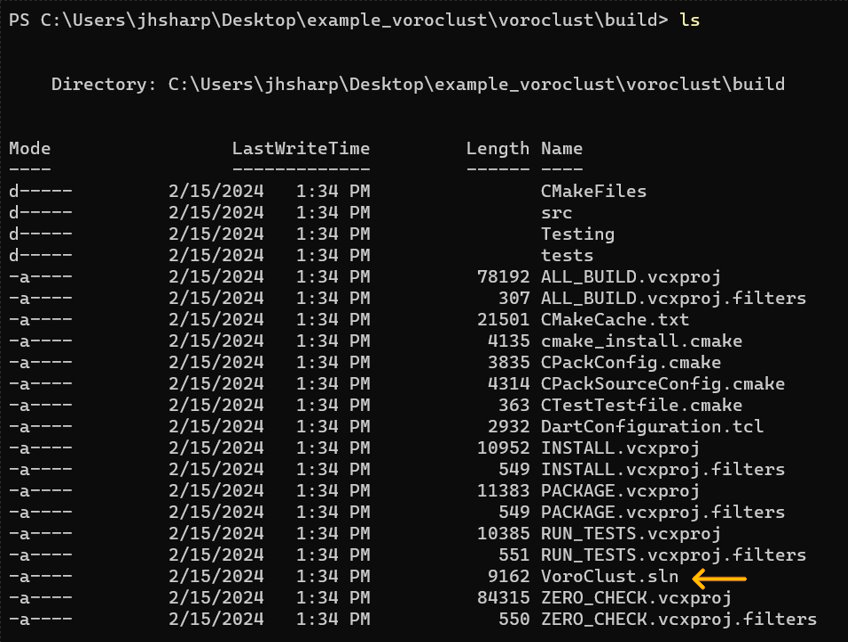
The next step is to open up Visual Studio, which ever version you prefer, and choose the Open a Project or Solution option.
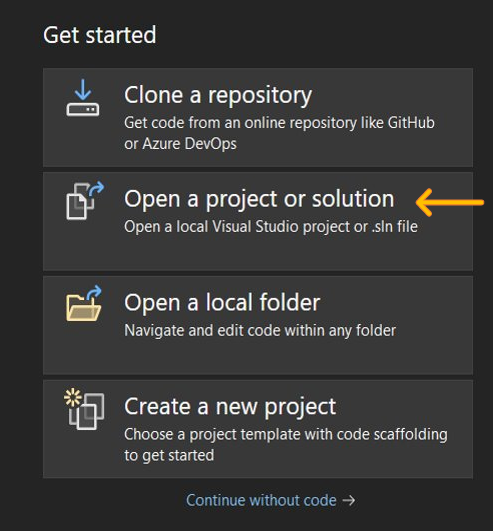
Once you choose this, navigate to where you just created the VoroClust.sln solution and select it. This will open in Visual Studio. The next thing to do is build it. Do this by clicking Build on the top panel and choosing Build ALL_BUILD (or pressing CTRL+B).
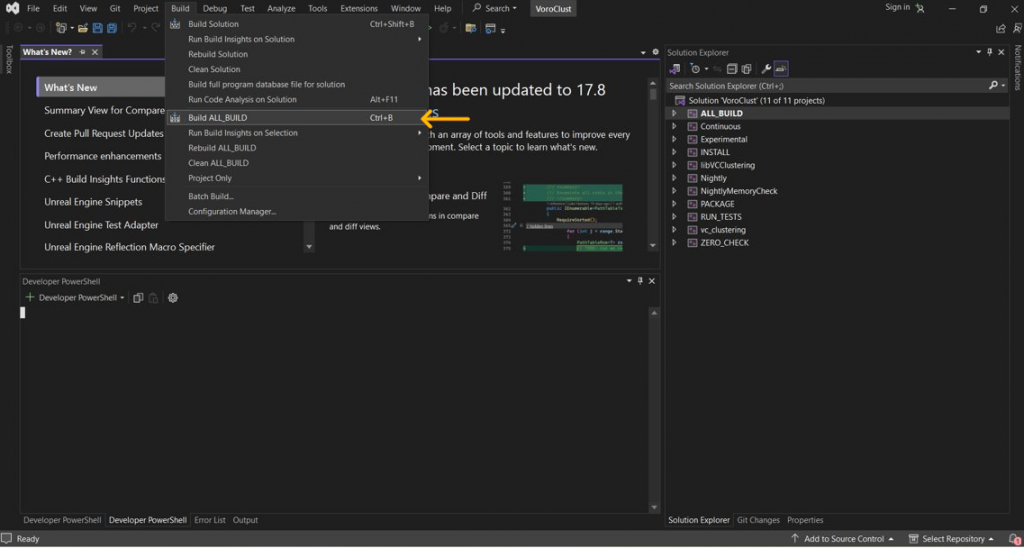
The output from building will look similar to:
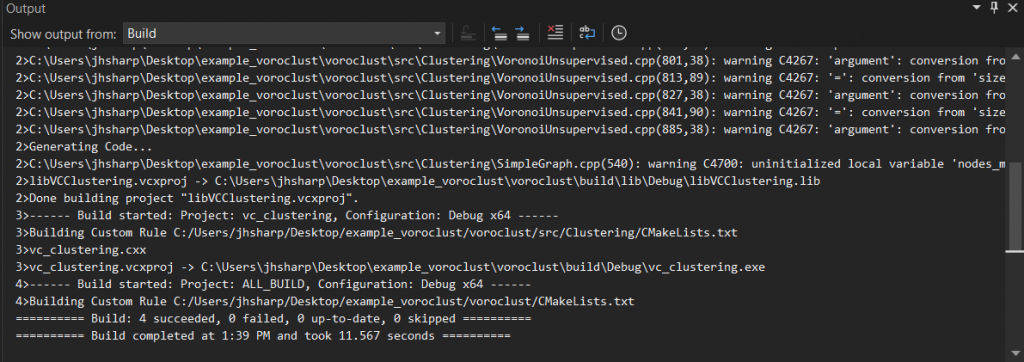
This will create the vc_clustering.exe, which you can then use. It will place this executable in a location similar to \voroclust\build\Debug.
Executing Step
Once you have the executable, you need 2 things, a data file and configure file. The data file will need to be a .csv file and the configure file will need to end with extension .in.
VoroClust expects a csv datafile where each row is an n-dimensional data point. The data file will look similar to this one:

And the configure file should look similar to this:
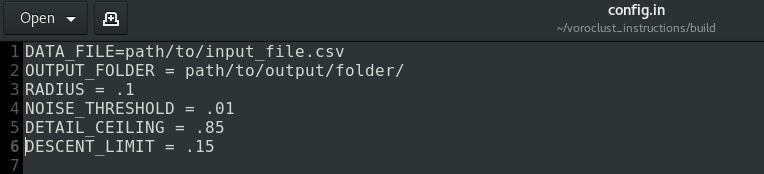
The parameters include-able in the configure file are:
- DATA_FILE – This parameter specifies which data file you want to use
- OUTPUT_FOLDER – This allows user to choose where the output is written to
- RADIUS – The radius of spheres used to cover the domain
- NOISE_THRESHOLD – Determines the fraction of data points which will be labeled as noise in a post processing step
- DETAIL_CEILING – Value between 0 and 1. Controls clustering propagation.
- DESCENT_LIMIT – Value between 0 and 1. Controls clustering propagation. DETAIL_CEILING should be greater than DESCENT_LIMIT.
- FIXED_SEED – Set a fixed seed. Defaults to -1 (random operation)
- NUM_THREADS – Number of OpenMP threads to use. Defaults to 1.
- READ_DATA_TREE_FILE – To save time, we can load the data’s Kd-Tree from a .bin file, rather than recomputing it.
- WRITE_DATA_TREE_FILE – Write the Kd-Tree to a .bin file for future use.
- READ_SPHERE_FILE – To save time, we can load the sphere cover from a .bin file, rather than recomputing it.
- WRITE_SPHERE_FILE – Write the sphere cover to a .bin file for future use.
- WRITE_DATA_BIN_FILE – Given a .csv DATA_FILE, writes the data to a .bin for reduced storage and faster loading. If this parameter is present, will skip clustering and ONLY write the file.
Using the Executable
Once you have built the executable and you have the config and data file that you need, you are ready to use VoroClust. The command line usage is as follows:
$ ./vc_clustering config.in
or on Windows:
$ ./vc_clustering.exe config.in
Running this command will produce a file titled something along the lines of data_labels_0.100000_0.850000_0.150000.csv, the significance of the file name being the parameters used during the execution.
Additional Help
If you need any additional help with using VoroClust please do not hesitate to reach out to us.